First-time quick start
- Download the portable ZIP.
- Request a 7-day trial key by e-mail on this page.
- Extract the ZIP into a separate folder.
- Start
VoxBridgeStudio.exe.
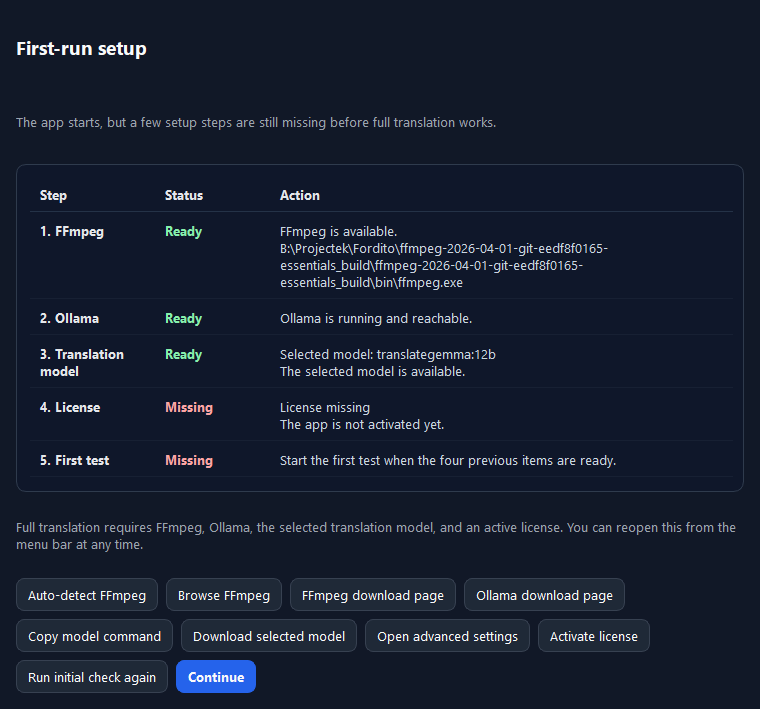
- Follow the first-run setup assistant.
- Test with a 30–60 second file first.
Setup is partially manual. VoxBridge Studio guides the first run, but
FFmpeg, Ollama, the translation model download, cloud provider keys, and license activation
may still require setup steps. If something is missing, follow the assistant, complete the
step, then return to VoxBridge Studio and check again.
- VoxBridge Studio: the main Windows app.
- FFmpeg: helps the app read and process video/audio files.
- Ollama: runs the local AI model on your computer.
- TranslateGemma: the translation model used through Ollama.
- Cloud BYOK: optional cloud recognition or translation with your own Groq or Gemini API key.
If your PC has around 16 GB RAM or 4 GB dedicated VRAM, start with the smaller
translategemma:4b model for the first test. The
translategemma:12b and translategemma:27b models are still
available, but they are heavier and may be slow or fail on weaker machines.
The trial key is requested by e-mail through this website. It is not generated inside
the app. During alpha testing, keys are sent manually, so the reply may not arrive
instantly. After you receive the key, open VoxBridge Studio and activate it inside the app.
Cloud BYOK keys are session-only by default. If you explicitly choose to remember them on
this PC, VoxBridge Studio uses Windows Credential Manager instead of plain settings files.