Support and troubleshooting

Quick help when something gets stuck

The support bundle and a short troubleshooting path help you find the first blocker during setup, Cloud BYOK, trial or license activation.

Help with local setup

VoxBridge Studio has a Local mode and an optional Cloud BYOK mode, so first setup can involve several steps. If you get stuck with FFmpeg, Ollama, model download, provider keys, license activation or processing, send a screenshot and a support bundle.

Contact

Support e-mail

The public support channel now uses the provided e-mail address. This is where trial, activation, and troubleshooting questions should go.

Current status Support e-mail: support@voxbridgestudio.org
Support level: reasonable e-mail support with no separate SLA
License delivery: by e-mail after successful payment, within up to 24 hours
Support bundle

What is it for?

The desktop app can bundle diagnostic metadata, technical state, settings and session information to help troubleshoot issues faster. This is especially useful when the issue may be related to the environment, provider setup, model state or license state.

  • logs and technical state
  • settings and session data
  • queue list and processing state
  • platform metadata
  • no private source video or audio content should be included or requested by default
Portable ZIP startup The first public trial path uses the portable ZIP. After downloading, extract it into a separate folder and start VoxBridge Studio from the extracted folder. Do not run it from inside the ZIP.
If setup or the trial does not start
1. FFmpeg 2. Ollama 3. Model 4. Cloud BYOK key

Most first-launch issues are connected to Local setup, Cloud BYOK keys or license state, so start here.

Recommended order: verify setup → run a short test video → create a support bundle only after that.

If the trial does not start

Quick troubleshooting order

Trial startup usually fails when a local dependency, provider key or license state is not ready yet. Check this sequence before sending a support e-mail.

  1. Confirm that the ZIP download completed and was extracted.
  2. Do not run the app from inside the ZIP; start it from the extracted folder.
  3. Rerun the first-run setup assistant.
  4. Check whether FFmpeg is available or configured manually.
  5. Start Ollama and confirm that it responds.
  6. Confirm that the selected translation model is installed.
  7. If using Cloud BYOK, confirm the selected provider and API key.
  8. Remembered API keys are opt-in and use Windows Credential Manager; do not send keys in screenshots.
  9. Try a 1-3 minute, non-private test video.
  10. If it still does not start, create a support bundle and send it with a short description.
First test

What counts as success?

The first success is not a perfect final result. It is a working language-coded output, for example VideoName.hu.srt or another target-language SRT from a short test video.

  • short test video processed
  • language-coded SRT created
  • no critical error in the log
  • longer material or dubbing can come after this
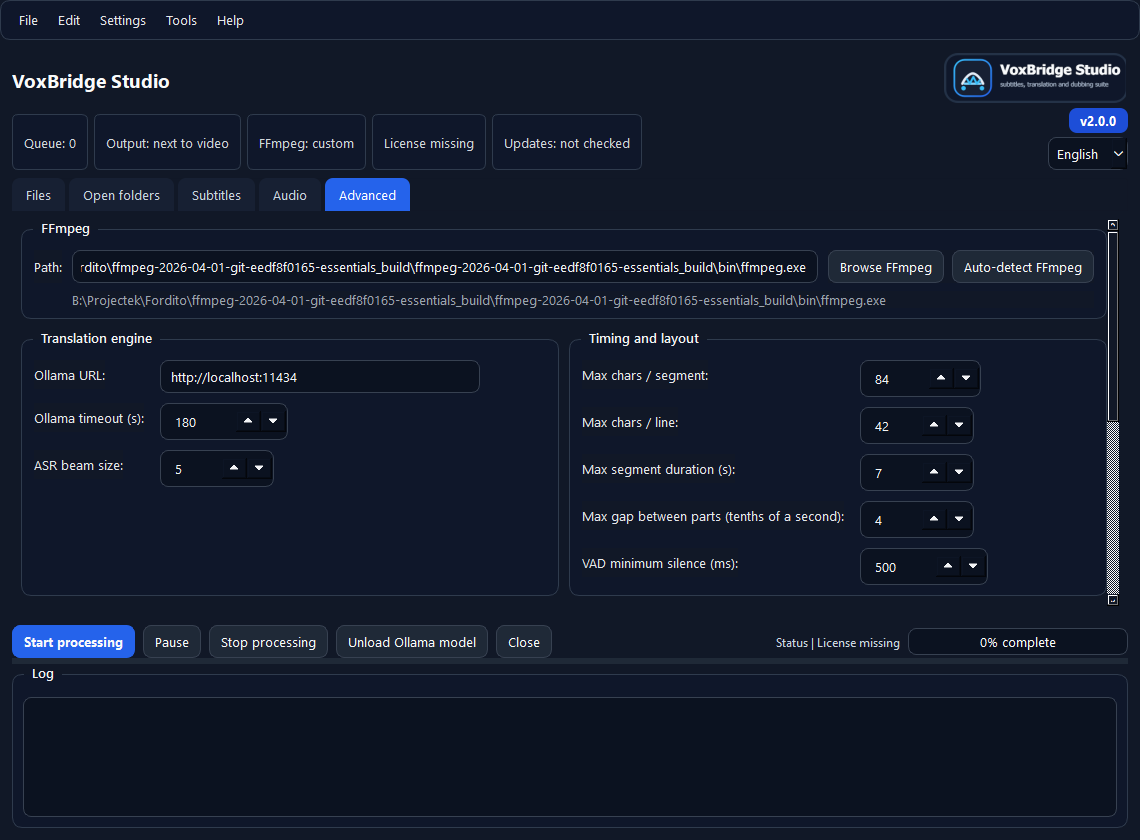
VoxBridge Studio advanced settings and diagnostics
Advanced / diagnostics FFmpeg, engine, license status, update and diagnostic settings are grouped in one place.

What should you send?

  • Windows version
  • VoxBridge Studio version
  • selected workflow profile
  • FFmpeg, Ollama, model and Cloud BYOK provider/key status if relevant
  • short reproduction steps
  • support bundle if it is safe to share
  • whether the 7-day trial or the paid personal license was involved
  • If you are creating subtitles for deaf or hard-of-hearing viewers, mention this in the issue description. Please also note whether the problem is related to accuracy, timing, readability, or translation.

Common issues

  • FFmpeg not found
  • Ollama not available
  • model missing
  • Cloud BYOK provider key missing or rejected
  • license activation fails
  • trial startup blocked by the local environment
  • processing gets stuck on a long or problematic source video

What should you not send?

  • do not send private video files if a short test file can reproduce the issue
  • do not send license keys in public channels or visible screenshots
  • do not send a full project folder if the support bundle is enough
  • do not send screenshots containing personal data without masking it first

What should go into the e-mail?

Support is faster when the issue is short and structured.

  • subject: VoxBridge Studio support - short issue
  • version: for example alpha-0.2.6 if you are testing that build
  • environment: Windows version, FFmpeg, Ollama, model or Cloud BYOK provider
  • steps: what you did right before the issue
  • result: what happened and what you expected instead
How support works Support is e-mail based. The personal license is for 1 active machine, so activation and machine-change questions can be handled by e-mail too. The license itself is also delivered by e-mail after successful payment, and if it does not arrive within 24 hours, the same support address is the next step. Once setup and the short test work, the next step is not support anymore, but the license decision.